Recently a friend of mine posted about losing his entire research library in OneNote, which brought flashbacks to losing my entire research library many years ago in the Endnote 7 to X upgrade.
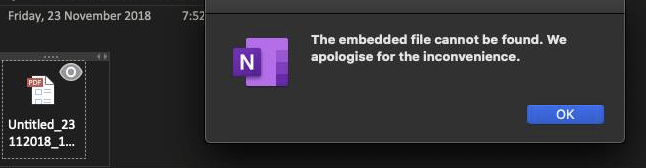
You never want to see this.
As such I am using this as an opportunity to briefly review my own research and backup practices, and run through how I use Zotero as a cloud synced, constantly backed up, and ultimately human readable research manager.
Zotero functions as the heart of the system and is used to make access to your research library quick and easy. But it is not the only part of the system and requires other aspects to function effectively. As I go into in one of my other posts the Zotero cloud storage capacity leaves a bit to be desired, so I store all of my PDFs in Dropbox. Zotero makes it easy to rename all the files easily and keep soft-links to the database.
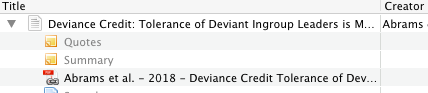
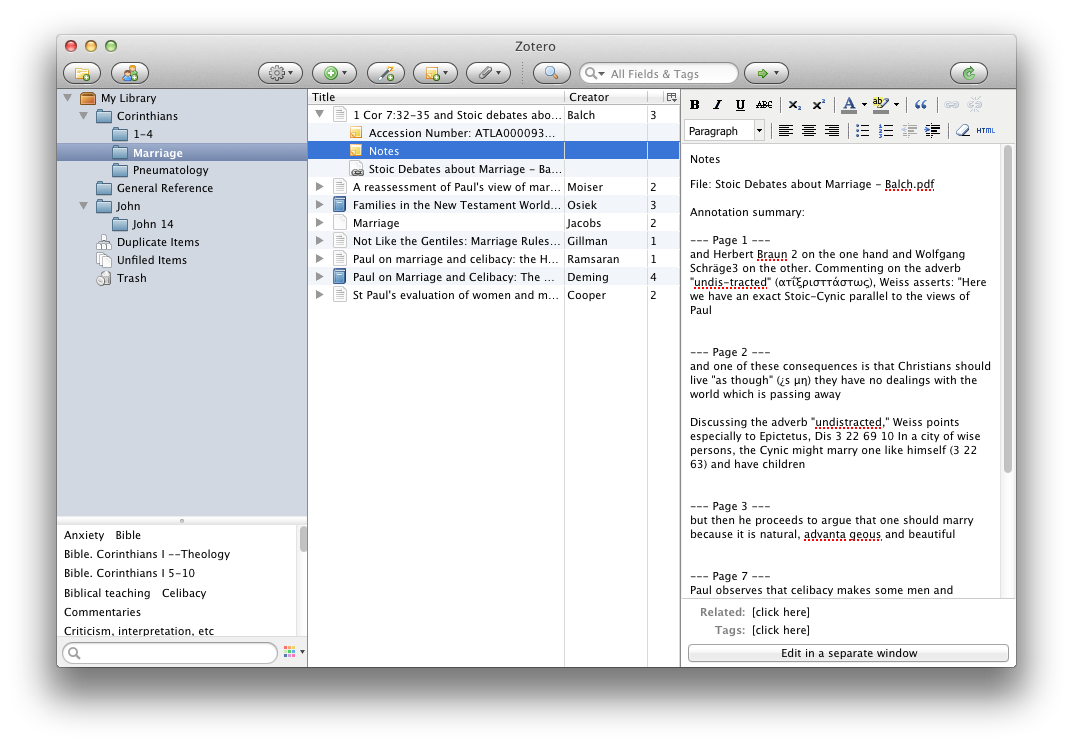
Zotero also allows you to keep notes with your documents, and those notes are indexable.
Notes attached to a journal article.
Those notes are also synchronised across devices using the Zotero cloud, and as raw text they take up very little space, so no worries there.
Zotero Export (BibTeX)
However, on its own Zotero isn’t great for being human readable. The last thing you want is for a service to decide that they are wrapping up and then you lose access to all your notes taken in that platform. I have had this happen with old OneNote, and seen it happen plenty of times with other platforms.
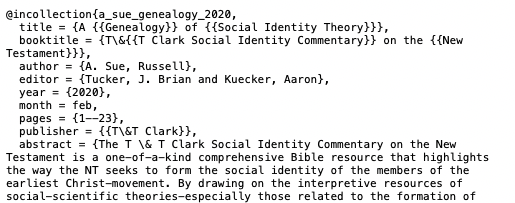
Mercifully in the research manager world there is an open-source standard called BibTeX. Now BibTeX is usually used to generate references for LaTeX. If you are a LaTeX user then this is great (and this post is unlikely to be news to you) but for anyone else who doesn’t use LaTeX then this aspect is likely to be somewhat moot. Rather we are interested in the fact that it generates a plain-text human-readable export of your database. In the event of your software being withdrawn or rendered inoperable by something (e.g. 64bit upgrades) then you will always have all of your research entries and notes in plain text.
BibTeX output from Zotero
I will be the first to admit that it isn’t particularly pretty, but it is human readable and that is what matters. Plus it is entirely likely that someone out there will have written a converter to other platforms or software that uses BibTeX as an intermediary step, and therefore you can restore your data somewhere else. Absolute worst outcome is that you can still read your data without having to deal with a closed software format (and you could always learn LaTeX and keep using it).
To do this Zotero needs a little plugin called BetterBibTeX, which I cover in this post: http://www.porterblepeople.com/2015/06/zotero-addons-extensions/ In that plugin you can export your library (File>Export Library…) and just check the “Keep Updated” box on export. I store my library in my Dropbox folder so that it is always cloud synced.
Dropbox
I use Dropbox as my cloud storage of choice, but most cloud storage will work well enough. I quite like Dropbox though as it also offers snapshots and the ability to roll back and restore files. Anything you use for cloud storage should offer those, in case you accidentally delete an entire directory. But if the cloud storage you choose offers the ability to roll back or undelete files, then use that.
Fin
That is it. Expecting more? It is a rather simple and robust backup system for a research library. I have had a hard drive die on my laptop before and it was annoying (downtime) but all of the data was restorable quickly and easily (being on 3G made it a bit slower). I was back up and running again in about 8 hours.
tl;dr? Critical things: keep your files backed up, and your research database exported in a human readable format.
Appendix A
As some friends have pointed out using a cloud service as a backup is only one layer of redundancy, and may not save you. Especially if you have sync conflicts or longer offline periods. However, in this I am aiming for a balance of automation and simplicity, as complexity often introduces barriers to adoption of new practices.
Personally I have Dropbox setup for constant sync which keeps my 3 machines synced, plus Time Machine backing up to a local server, and that doing a nightly rsync to my US server, and I also take a portable HDD into work that is on monthly rotation. Paranoid? No, I worked for a couple of unis in support roles and have seen first hand the devastating effects of losing research too many times. But it is a lot more to setup than a cloud service.
For a while now I have had some minor annoyances with Zotero and how it integrates with Scrivener. A lot of it has to do with needing to use Word for the final output stage as the RTFScan in Zotero gives you very few other options.
One of the problems here is that the Zotero shortcode referencing for these two citations looks the same:
Dunn, James D. G. “John and the Oral Gospel Tradition.” Jesus and the Oral Gospel Tradition. Edited by Henry Wansbrough. Journal for the Study of the New Testament 64. Sheffield: JSOT, 1991.
———. The Partings of the Ways: Between Christianity and Judaism and Their Significance for the Character of Christianity. London : Philadelphia, Pa: SCM Press ; Trinity Press International, 1991.
They both are cited as {Dunn, 1991} which leads to odd shortcodes such as {Dunn-Partings, 1991} etc.
Well this morning I found a very neat option to do away with both the RTF Scan output, and therefore Word, and also to further differentiate citations. It also integrates Scrivener and Zotero with LaTeX, which will help with odd formatting and improve the output (as you don’t have Word messing about with all your nice formatting output from Scrivener).
This allows Zotero to integrate seamlessly with BibTeX and therefore allow you to export from Scrivener using the LaTeX markdown. This allows you to use nice Citekeys, which look like this: [#dunn_partings_1991] Those Citekeys are unique when exported from Zotero++ and so no more confusion of references.
In the next little while I will be experimenting with how it all works together, and will write somewhat of a guide for it. But from what I can tell it should all work well.
In addition the Zotero++ project also hosts a few other neat plugins, such as AutoIndex that will regularly re-index your Zotero library keeping it all nicely up to date. Go check the site out.
Now where did I read that quote? What did that book say again? Was the argument in this chapter coherent?
For anyone working in a research field I’m willing to bet that you have asked yourselves such questions, and it only gets worse the more you read. So after the post on Reading last Friday comes this timely post on how to organise what you have read. As with most items in our toolkit there are several different options for working at this stage of the process, however I’m only going to consider one today: Zotero. This is mainly because Zotero works at engaging with multiple different tasks in the research process. At one level it is a full fledged reference and citation manager, while at another it is a synopsis and summary database, and at yet another it is a library and database organisation tool. I feel that Zotero combines the best aspects of several other tools, and does it without a lot of the bugs or cost of some of the bigger names (cough Endnote comes to mind). Personally I use Zotero as a bit of a hub within my research process, articles and information get funnelled in and then spokes radiate out towards different tasks and then information is returned for further collation and use. This post is how I use Zotero.
The Basics
Simply speaking the basics of Zotero work as follows:
Import or add reference into Zotero from the various plugins and data sources (Amazon, Ebsco, PubMed, Libraries etc) or input by hand.
Cite reference in your text
Sit back and marvel at not having to manually format references.
My Zotero Library
At the first level, that of making your work of referencing easier, Zotero does an admirable job. It is quick, easy to get data into, doesn’t crash regularly (Endnote should take notes), syncs over the web, and outputs in a wide variety of formats with little fuss. Even if this is all you use it for, it is a great time saver and helps with taming your citations from brusque unruliness to a general surly attitude. However, Zotero is capable of so much more than this, and to leave the process here would be to hamstring the use of the tool. But first a brief caveat.
Caveat: Zotero is exactly like every single other computer application, in that it is a bunch of mechanically executed code. [ref] ok some genetic algorithms excluded[/ref] It cannot think for itself, and while it has a whole bunch of smarts built in, it can only deal with the data that you feed it. So in true computer terminology it is susceptible to the failings of Garbage In, Garbage Out. Simply put if you feed Zotero, or any other program, garbage data, then expect garbage in return; it can only work with what you feed it. So if your citations have the wrong publisher, or incorrectly entered titles (yes capitalisation here counts), then you will get that out in return. This is the most common mistake I see with Zotero usage. I cant emphasise it enough, police and parse your data on the way in so you get well formatted, rather than unruly, data on the output. It is also worth noting that most library systems, including Library of Congress, and publisher data won’t conform exactly to your requirements. So things like the publisher ‘WB Eerdmans Inc.’ will need to be manually stripped back to ‘Eerdmans.’ This is extra effort, and is actually why I recommend that students only writing shorter essays (commonly ~2000 words) simply write and format their citations manually.
Research & Organisation
That caveat aside, and arguably because of that caveat, we will continue on to the bigger and greater things that Zotero is capable of. If you are anything like me, you will probably dislike having a desk full of pieces of paper and various journal articles that have been read, or still yet to be read, or have been read but not summarised etc. For about 10 years of my prior research life this was my overwhelming bugbear. I would regularly lug a ream of paper around with various journals articles printed out, and swathes of postit tabs throughout them. These days I deal primarily in PDF, and digital highlighting and annotation make this process much easier. But how do you organise this information? All those a3532582920.pdf and pubmed_83928932.pdf, not to mention the assorted .epub files of Open Access books, and much more. Well this is the second phase of how to use Zotero, and where it comes into its own.
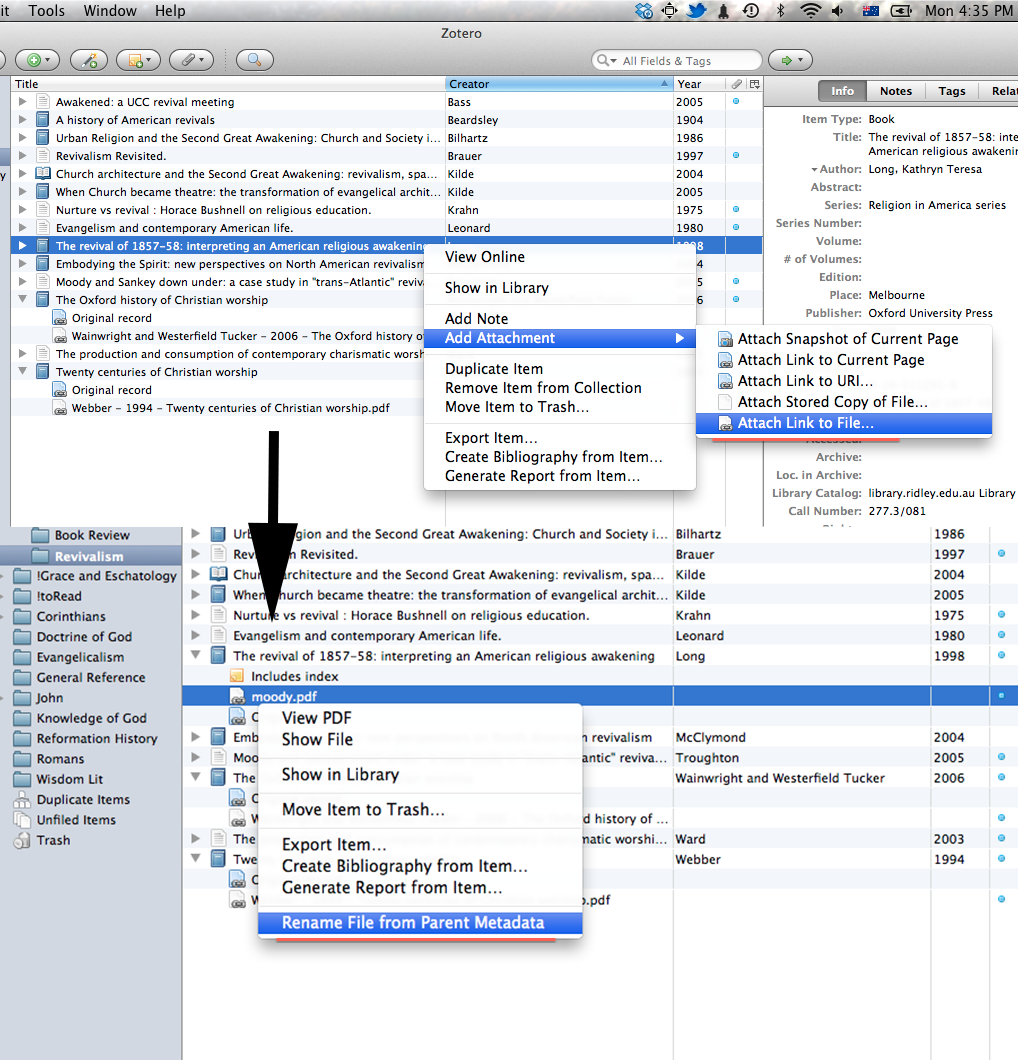
The first feature is somewhat mundane: renaming. Once you have a reference in Zotero you can attach or link a PDF to the reference and simply rename the file from the metadata in Zotero. It’s a simple feature, but saves a bunch of time and effort.
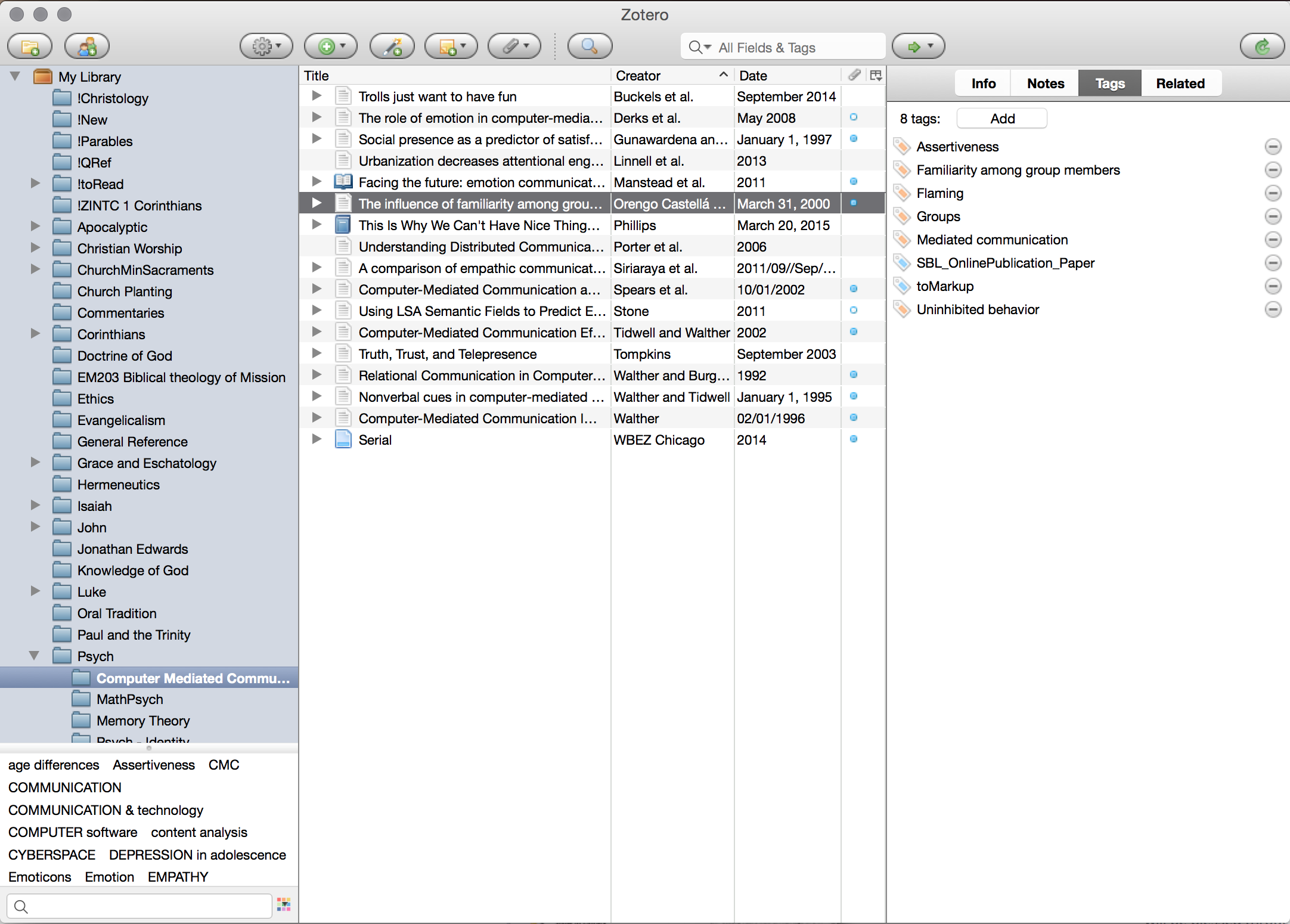
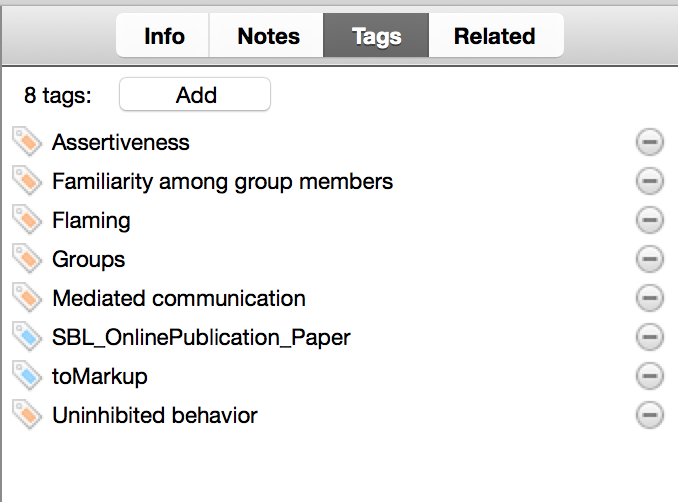
Secondly, and more critically, as a digital reference manager you can add all your references to Zotero, and then sort and organise them by two different methods. Firstly, you can sort them into categories. I predominantly use collections for thematic organisation, as you can see in my screenshot: ‘Christology’, ‘Luke.’ Furthermore these collections can be nested, as in my ‘Psych’ collection with various sub-collections underneath. The second way to organise your library is through the use of tags. I tend to use tags in three different fashions: topical, procedural, and project oriented. Topical tags simply delineate the various topics that are addressed by an article or book. Procedural tags generally mark whether something is yet to be read (toRead), or yet to be marked up (toMarkup). Project tags simply note that I used a certain article in a project I have worked on. The entire Zotero database is searchable by these tags so you can easily and quickly have an idea of what is yet to be read or marked up, or what you cited for a certain paper, or what deals with certain topics. Super simple stuff, but invaluable in being able to find material quickly when your library grows large.
Documentation & Gathering
The penultimate phase of the Zotero experience comes in being able to collate and find your documentation and notes on all the books and articles. Within Zotero you can add ‘Notes’ for each reference. I use these notes in two ways. Firstly if I’m working with a digital resource tend to have a single note dedicated to all the highlights from that resource. You can extract these simply, and I’ll cover that in coming weeks. If it is a physical resource then I tend to transcribe either the full quote of interest, or briefly summarise the idea at hand, and note page number. That way the key pieces of information are easily at hand. This is the markup phase of my ’toMarkup’ tags above. Secondly, I also write a brief 50-100 word synopsis of each chapter or major logical section of the reference, in my own words. This allows for better memory retention of the material, but also provides a good reference synopsis of the work and therefore makes it easier to engage with at a later date. These Notes are stored alongside the reference and are synced across devices, and so are easily accessible anywhere. Furthermore, they are eminently searchable and while my office used to look like it was overflowing with a small dead forest, and previously I would be scrambling around in various manila folders and a whirlwind of post-it notes to try and find the source of a quote, I can now search for it in Zotero, and in pretty short order I have found the document I am after. This is one of the features of Zotero that I find invaluable these days.
Output
The final phase of my Zotero workflow is to actually output the references as citations in my documents. While Zotero does come with Word, LibreOffice and OpenOffice plugins, I find all of those word processors annoying and ultimately unsatisfying. I prefer to use Scrivener, which I will talk about in due course. But unfortunately Zotero doesn’t come with a default Scrivener plugin, although I’m hoping for one eventually. Rather you can use the RTF Scan feature of Zotero, which makes it useable with anything that can output in RTF format. In order to reference material you simply use the short code, consisting of {Author, Date, Page} or any one of the other short codes depending on your usage. You then run your output through Zotero and choose your stylesheet and bam, all your citations are done. It doesn’t get much simpler than that.
The final note goes to the stylesheet functionality. There are many referencing formats out there, and Zotero is invaluable when you need to reformat an article or paper for a different referencing system. All you have to do is download the new stylesheet and apply it to the document. There is a whole database of Zotero stylesheet (CSL) files out there for various formatting systems, and the majority you can find here: https://www.zotero.org/styles
If you are an SBL 2.0 user, you will find that the style on the repository is one that uses Ibid. notation. Given that the no-Ibid option seems to keep disappearing, here it is for posterity. society-of-biblical-literature-2nd-edition-full-notes-no-ibid
That just about wraps up this post on Zotero, as I said I find it the central hub of my research methodology. Although I’m sure that there are other tools out there. Perhaps Endnote has become the phoenix from the ashes and resurrected itself without crashing every 15 minutes, or perhaps you prefer a different tool. As usual I would love to hear your comments and what you use in the section below.
When working, or studying, or for that matter going about daily life there are a multitude of skills and disciplines that will help us be better at whatever we are doing. Some of those skills and disciplines I will look at in the Wednesday and Friday sessions. But in addition to these skills and disciplines there are a whole host of software tools that can make the tasks at hand easier, more productive, less painful, and assist us overall. However, there are two caveats with any toolset.
Firstly, they are only tools, they do not replace the tasks that are at hand, or the skills and discipline needed to complete the task at hand. One common trap I have seen many students and colleagues fall into is assuming that because they are using the right tools that the task will become self-completing, or that they can use less effort for the same results. Using the right tools will make your life easier, but they wont do your work for you. Just because you have a Phillips screwdriver rather than a hammer to undo the screw, doesn’t mean that the screw will automatically undo.
Secondly, there are a lot of tools out there. In putting together this series I have experimented with some tools outside of my normal toolkit, or tried to find free, cheaper or better alternatives. But commonly this can lead to tool paralysis, where we wonder whether Tool A is right for the job, or whether we would be better served with Tool X, Y, Z and the rest of the alphabet. The truth be told there is no one perfect tool for any job, each has their own quirks and idiosyncrasies, and it is up to the user to decide whether the tool at hand fulfils their requirements accurately. On the flip side there is something to be said for maintaining a relatively stable toolkit, as chopping and changing regularly tends to waste time with the learning curve of the new tool. The toolkit I work with, that I will showcase in this series, has has several tweaks and minor changes, but hasn’t had any major upheavals for several years now. It is stable, and the oddities I have either embraced or learned to work around.
This Monday series will document my toolkit that I use for my research, synthesis and output in my academic life. In various incarnations this toolkit has served me well through the last ten years of academic research after I finished my undergrads. Some of the software has changed, and certainly the proportion of digital work has increased with new technology, but the overall process has remained relatively stable. While ten years ago I worked mostly in paper, I have transitioned to being predominantly digital in workflow over the last five years. This certainly helps with being able to search and access data easily, and assists in the synthesis and output process.
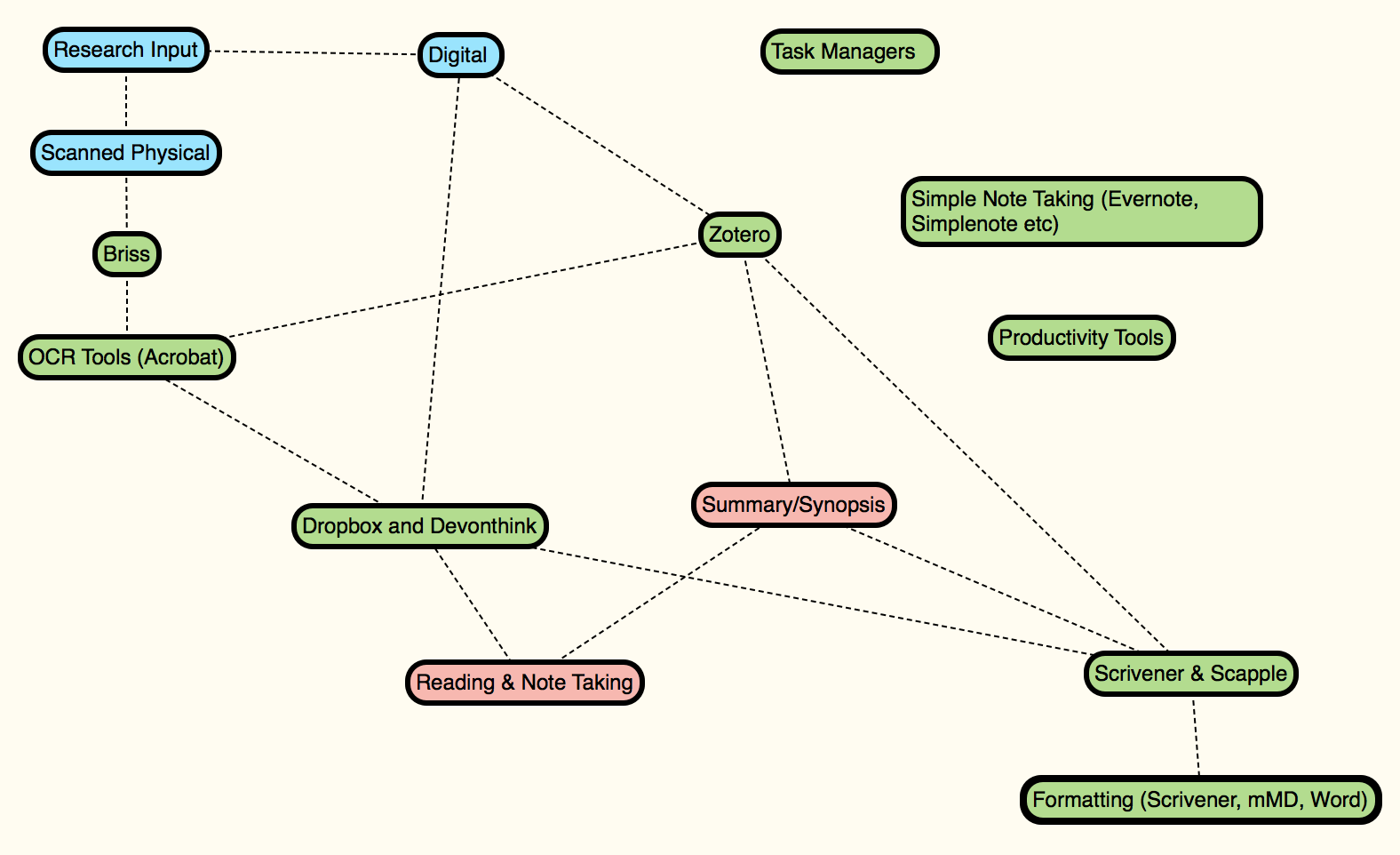
Roughly speaking I take input either already digital or physical, digitise the physical media, manipulate it so that it is consistent with Briss and OCR (Acrobat) tools, and then add it to my library (Zotero and Devonthink). From there I maintain my library and process the material through reading, note taking and writing synthesised summaries. On the output side I use a mindmapping tool (Scapple) and a word processor (Scrivener) to synthesise my ideas into their final forms.
Alongside this process sits a bunch of task management tools, note taking apps, and productivity tools that assist me in getting my work done. I will come to each of those in turn.
The next six blog posts will cover this entire process in more detail, and will roughly follow the workflow. The six posts will be on:
Task Managers & Focusing (Tools for Getting Things Done)
Briss & Acrobat (Wrangling Digital Files)
Zotero (Citation and Library Management)
Dropbox and Devonthink (Storing and Accessing Digital Media)
Note Taking Tools
Synthesis Tools (Scrivener and Scapple)
I’m looking forward to this series, partly because I’m keen to help others be able to organise their research and writing better, but also because it helps me review my own toolkit and see whether anything needs further tweaking. I would love to hear your thoughts on the process I have outlined, and what tools you use. Comment here or on Facebook.