Tag: onenote

  • Using Zotero as a Robust Research Manager

    Using Zotero as a Robust Research Manager

    Recently a friend of mine posted about losing his entire research library in OneNote, which brought flashbacks to losing my entire research library many years ago in the Endnote 7 to X upgrade.
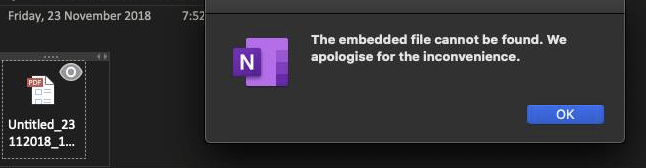
    You never want to see this.

    As such I am using this as an opportunity to briefly review my own research and backup practices, and run through how I use Zotero as a cloud synced, constantly backed up, and ultimately human readable research manager.

    Zotero

    Firstly, I have posted about Zotero a few times now, so there are more details in those posts. All available here: http://www.porterblepeople.com/tag/zotero/

    Zotero functions as the heart of the system and is used to make access to your research library quick and easy. But it is not the only part of the system and requires other aspects to function effectively. As I go into in one of my other posts the Zotero cloud storage capacity leaves a bit to be desired, so I store all of my PDFs in Dropbox. Zotero makes it easy to rename all the files easily and keep soft-links to the database.

    Zotero also allows you to keep notes with your documents, and those notes are indexable.
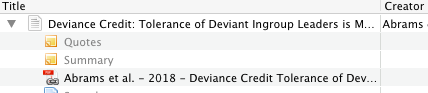
    Notes attached to a journal article.

    Those notes are also synchronised across devices using the Zotero cloud, and as raw text they take up very little space, so no worries there.

    Zotero Export (BibTeX)

    However, on its own Zotero isn’t great for being human readable. The last thing you want is for a service to decide that they are wrapping up and then you lose access to all your notes taken in that platform. I have had this happen with old OneNote, and seen it happen plenty of times with other platforms.

    Mercifully in the research manager world there is an open-source standard called BibTeX. Now BibTeX is usually used to generate references for LaTeX. If you are a LaTeX user then this is great (and this post is unlikely to be news to you) but for anyone else who doesn’t use LaTeX then this aspect is likely to be somewhat moot. Rather we are interested in the fact that it generates a plain-text human-readable export of your database. In the event of your software being withdrawn or rendered inoperable by something (e.g. 64bit upgrades) then you will always have all of your research entries and notes in plain text.
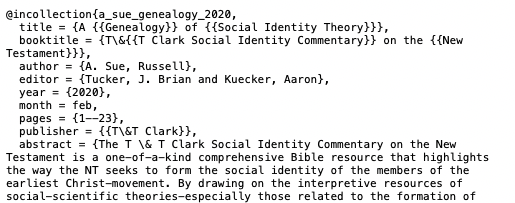
    BibTeX output from Zotero

    I will be the first to admit that it isn’t particularly pretty, but it is human readable and that is what matters. Plus it is entirely likely that someone out there will have written a converter to other platforms or software that uses BibTeX as an intermediary step, and therefore you can restore your data somewhere else. Absolute worst outcome is that you can still read your data without having to deal with a closed software format (and you could always learn LaTeX and keep using it).

    To do this Zotero needs a little plugin called BetterBibTeX, which I cover in this post: http://www.porterblepeople.com/2015/06/zotero-addons-extensions/ In that plugin you can export your library (File>Export Library…) and just check the “Keep Updated” box on export. I store my library in my Dropbox folder so that it is always cloud synced.

    Dropbox

    I use Dropbox as my cloud storage of choice, but most cloud storage will work well enough. I quite like Dropbox though as it also offers snapshots and the ability to roll back and restore files. Anything you use for cloud storage should offer those, in case you accidentally delete an entire directory. But if the cloud storage you choose offers the ability to roll back or undelete files, then use that.

    Fin

    That is it. Expecting more? It is a rather simple and robust backup system for a research library. I have had a hard drive die on my laptop before and it was annoying (downtime) but all of the data was restorable quickly and easily (being on 3G made it a bit slower). I was back up and running again in about 8 hours.

    tl;dr? Critical things: keep your files backed up, and your research database exported in a human readable format.

    Appendix A

    As some friends have pointed out using a cloud service as a backup is only one layer of redundancy, and may not save you. Especially if you have sync conflicts or longer offline periods. However, in this I am aiming for a balance of automation and simplicity, as complexity often introduces barriers to adoption of new practices.

    Personally I have Dropbox setup for constant sync which keeps my 3 machines synced, plus Time Machine backing up to a local server, and that doing a nightly rsync to my US server, and I also take a portable HDD into work that is on monthly rotation. Paranoid? No, I worked for a couple of unis in support roles and have seen first hand the devastating effects of losing research too many times. But it is a lot more to setup than a cloud service.
  • Easy Note Taking – Evernote, OneNote, Pages and SimpleNote

    Easy Note Taking – Evernote, OneNote, Pages and SimpleNote

    He listens well who takes notes. – Dante (Canto XV)

    Note taking can often seem like something of a burden, that gets in the way of learning stuff, or getting things done. However, unless we have a robust eidetic memory, then we are going to need to take notes. Thankfully there are a plethora of note taking options that can make your life easier. Or they can actually make it harder, as we will see. Thankfully they are all easier than using scraps of paper everywhere, and then trying to fit pages into a 3 ring binder with only a 2 hole punch (thanks Tom for the salient example).

    betty.notetaking

    However, what apps and tools should be in your toolkit? Well this is where it gets a bit nasty, as there are so many tools that purport to do everything but make you cups of tea, and wash the dishes. But when you distill it down they may tidy up and take the trash out, but they have a few warts, plus all these bloated bits on the side, and no-one really knows what do do with all the guff that they leave around. So here are my four top tools, and why I only really use two of them.

    Evernote

    2000px-EvernoteEvernote has become something of the big daddy of note taking systems with most people at least having heard of it, if not used it before. It has certainly earned that reputation as well, with most features of the app being easy to use, and the convenience of cloud synced notes is invaluable. Plus it has a relatively good searching system, with notes being indexed and decently easy to access. It is on the bloated side, with it trying to manage your notes, research, life, girlfriend/wife, and it would like to hold your hand on dates if it could. In that regard it essentially duplicates a bunch of other tasks, and several of them not particularly well. Nevertheless, this isn’t the critical flaw that some would like to believe. Think of it as a Swiss Army note pad. You are never going to use that funky skewering thingy, and rarely will you use all three of the bottle openers, but it does the core tasks quite well. You do have to pay for a bunch of features though. Want to use the iOS app offline: Premium, want to collaborate better: Premium, want to upload more: Premium, want to annotate your PDFs: Premium… etc. That just makes me annoyed really, but if you want to live in their ecosystem and use its advantages then it is only fair that they want you to pay for it. After all that lovely condo overlooking Central Park doesn’t come for free.

    However, there is one big caveat with Evernote, and it isn’t that it has such a close naming similarity to Endnote that it makes me shudder. When you are using Evernote you are in their system, and it is a proprietary one. It is a lesson I have learnt the hard way over a couple of other platforms (*cough* Springpad and others), and it involves losing all your notes and information if the system goes down. Evernote here is a bit more friendly, with the userbase being large enough that it shouldn’t go down suddenly, and if it does look like a sinking ship it does allow you to export your notes. Still, this ecosystem deal makes me feel a little queasy.

    OneNote

    microsoft-onenote-2013-06-535x535The next option is OneNote, from the Microsoft behemoth. OneNote does much the same as Evernote, with its own cloud syncing thingy, and given the size of the Micro$oft juggernaut it should be syncing, rather than sinking. Being linked in with the Office environment here makes it a fairly useful little tool, although you give up all of the nice archiving and indexing algorithms from Evernote. But on the flipside, you only have to pay through the nose once for the privilege of using the tool, rather than the pesky subscription model. However, the caveat here is the same as the one for Evernote. Indeed, OneNote is one of the platforms that I have lost data with before. Although in this case I have all my notes still jammed into the little .one files, dutifully backed up. I can do almost nothing with them. The version of OneNote that last opened them didn’t support easy export, and so short of copying and pasting them all it’s a bit of a lost cause. But hey, on the bright side at least I have the files (*hums* Always look on the bright side of life). This consigns OneNote to the same drawer as Evernote.

    Pages/Word/GoogleApps

    mzl.nnnyqswm.175x175-75The fourth option here is Pages, or Word if you are on PC/Android/WinMo, or Google Apps if you swing that way. These aren’t really dedicated note taking systems, although they can be pressed into service in a pinch. They all come with a variety of mobile apps, and you can cloud sync your notes via Dropbox (see the last post) so you can get at your notes anywhere. However, they are quite granular and don’t really support tagging or any other organisational features. So you need to keep your directory structures clean and clear. File format wise they are both proprietary but widespread enough that they can be opened on multiple platforms and by multiple apps.  Plus they can all be exported to PDF for archival. Quite nice really, but seriously bloated for a note taking app. That said, I still use Pages and Word for note taking in conferences (depending if I’m on the iPad or laptop), and then just export to PDF for archival at the end of the conference.

    SimpleNote/nvALT (simplenote.combrettterpstra.com/projects/nvalt/)

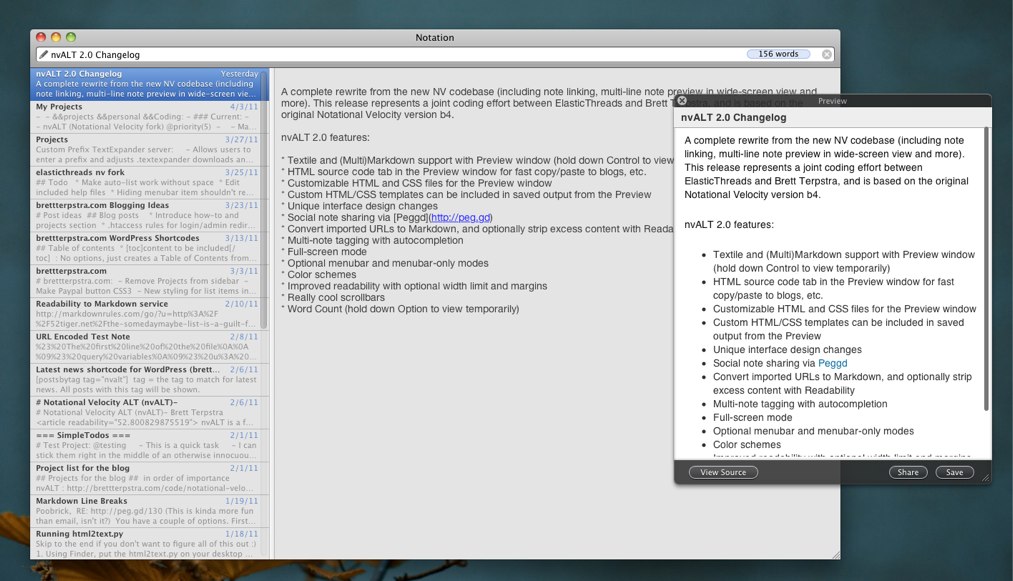
    nvALT2.0ScreenshotNone of the above solutions have really whetted my appetite for a note taking app, until this one: SimpleNote. If Evernote and OneNote are your full featured, slightly bloated and bulging note taking apps, then SimpleNote is the polar opposite. SimpleNote does exactly what it says, and is a basic text based note taking app. It supports one form of organisation: tagging; and that is about it. It is solely text and MultiMarkDown compatible, which means no fancy fonts or formatting, just plain text with some basic italics, bold and other simple formatting features. Where it excels is that it does this without any fuss and mess, and is easily exportable and cross compatible. For a start, given that everything is in text, and several helper apps can reach into the cloud to extract your notes and store them in .txt format on your machine, means that you don’t have to worry about being stuck in a proprietary system. Plus with everything being indexed in text format, apps such as DEVONthink or Spotlight can quickly read them and find your data. You can tag your notes with OpenMeta tags so you can find them easily, and being cloud based you can access your notes anywhere. As they are fairly open with their interface there are other good desktop helper apps to use as well. Personally here I use ResophNotes if I’m on Windows, and a fork from Notational Velocity called nvALT on the Mac. nvALT is my go to for quick note taking and it syncs easily with SimpleNote. That way I can have all the quick notes I need on my phone, and anywhere. From paper ideas, to pithy quotes, it is all here. I quite like this primer on text notes over on the ‘A Better Mess’ blog, he covers the range of uses better than I can in this short form now: Plain Text Primer : nvALT 101.

    Finally I will end this post by highlighting one use of this system. When I find particularly salient quotes from articles and books, I tend to store them in a little file on my SimpleNote, that I nickname my quote bank. Some of it is humorous anecdotes while others are serious treatises. But they are all there for ease of finding and rapid application.

    Well there it is, my note taking post, and why I don’t use Evernote, or OneNote. In this case simple wins out, with SimpleNote just having the ease and sticking power. Tell me why I’m a fool not to use Evernote, or your favourite note taking app, in the comments below.