Tag: dropbox

  • Using Zotero as a Robust Research Manager

    Using Zotero as a Robust Research Manager

    Recently a friend of mine posted about losing his entire research library in OneNote, which brought flashbacks to losing my entire research library many years ago in the Endnote 7 to X upgrade.
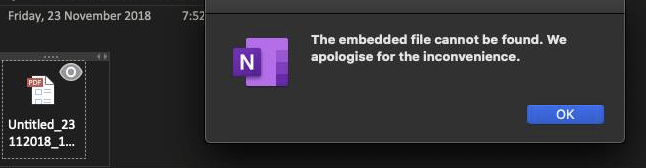
    You never want to see this.

    As such I am using this as an opportunity to briefly review my own research and backup practices, and run through how I use Zotero as a cloud synced, constantly backed up, and ultimately human readable research manager.

    Zotero

    Firstly, I have posted about Zotero a few times now, so there are more details in those posts. All available here: http://www.porterblepeople.com/tag/zotero/

    Zotero functions as the heart of the system and is used to make access to your research library quick and easy. But it is not the only part of the system and requires other aspects to function effectively. As I go into in one of my other posts the Zotero cloud storage capacity leaves a bit to be desired, so I store all of my PDFs in Dropbox. Zotero makes it easy to rename all the files easily and keep soft-links to the database.

    Zotero also allows you to keep notes with your documents, and those notes are indexable.
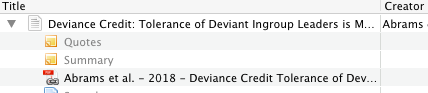
    Notes attached to a journal article.

    Those notes are also synchronised across devices using the Zotero cloud, and as raw text they take up very little space, so no worries there.

    Zotero Export (BibTeX)

    However, on its own Zotero isn’t great for being human readable. The last thing you want is for a service to decide that they are wrapping up and then you lose access to all your notes taken in that platform. I have had this happen with old OneNote, and seen it happen plenty of times with other platforms.

    Mercifully in the research manager world there is an open-source standard called BibTeX. Now BibTeX is usually used to generate references for LaTeX. If you are a LaTeX user then this is great (and this post is unlikely to be news to you) but for anyone else who doesn’t use LaTeX then this aspect is likely to be somewhat moot. Rather we are interested in the fact that it generates a plain-text human-readable export of your database. In the event of your software being withdrawn or rendered inoperable by something (e.g. 64bit upgrades) then you will always have all of your research entries and notes in plain text.
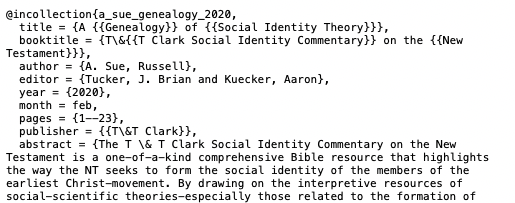
    BibTeX output from Zotero

    I will be the first to admit that it isn’t particularly pretty, but it is human readable and that is what matters. Plus it is entirely likely that someone out there will have written a converter to other platforms or software that uses BibTeX as an intermediary step, and therefore you can restore your data somewhere else. Absolute worst outcome is that you can still read your data without having to deal with a closed software format (and you could always learn LaTeX and keep using it).

    To do this Zotero needs a little plugin called BetterBibTeX, which I cover in this post: http://www.porterblepeople.com/2015/06/zotero-addons-extensions/ In that plugin you can export your library (File>Export Library…) and just check the “Keep Updated” box on export. I store my library in my Dropbox folder so that it is always cloud synced.

    Dropbox

    I use Dropbox as my cloud storage of choice, but most cloud storage will work well enough. I quite like Dropbox though as it also offers snapshots and the ability to roll back and restore files. Anything you use for cloud storage should offer those, in case you accidentally delete an entire directory. But if the cloud storage you choose offers the ability to roll back or undelete files, then use that.

    Fin

    That is it. Expecting more? It is a rather simple and robust backup system for a research library. I have had a hard drive die on my laptop before and it was annoying (downtime) but all of the data was restorable quickly and easily (being on 3G made it a bit slower). I was back up and running again in about 8 hours.

    tl;dr? Critical things: keep your files backed up, and your research database exported in a human readable format.

    Appendix A

    As some friends have pointed out using a cloud service as a backup is only one layer of redundancy, and may not save you. Especially if you have sync conflicts or longer offline periods. However, in this I am aiming for a balance of automation and simplicity, as complexity often introduces barriers to adoption of new practices.

    Personally I have Dropbox setup for constant sync which keeps my 3 machines synced, plus Time Machine backing up to a local server, and that doing a nightly rsync to my US server, and I also take a portable HDD into work that is on monthly rotation. Paranoid? No, I worked for a couple of unis in support roles and have seen first hand the devastating effects of losing research too many times. But it is a lot more to setup than a cloud service.

  • Finding the Needle in the Haystack – Dropbox and DEVONthink

    Finding the Needle in the Haystack – Dropbox and DEVONthink

    Now, where did I put that document again?

    needle_in_the_haystack_4Any organisational system is only as good as how easy it is to find the material you are looking for, and this system is no different. But sometimes it can feel like trying to find a needle in a haystack. I think we have all been there, after all that is why the meme works so well. While in my first system the organisation was a mess of folder tabs and hanging files, my later, early digital, systems involved portable usb sticks, complex synchronisation scripts, and a plethora of duplicated files. However, this current system is a lot more streamlined, easy to use, and relatively simple in practice. It involves just two applications, that link into my overall structure: Dropbox, and DEVONthink.

    Dropbox

    Dropbox is a bit of a staple of many organisational systems, being one of the early cloud file storage services. However, even now I am constantly surprised by the number of people who don’t use a cloud synced service like Dropbox, and even more surprisingly have never heard of the option. While having a cloud synced storage option is not completely needed, it is an excellent way to work. In my broader environment I have three machines, two laptops and a desktop. The laptop on my desk at college is an older Macbook Pro, which I am happy to leave just locked in an office. On the other hand my desktop and new rMBP are a bit more precious and generally stay at home or within eyesight. This does present a bit of a problem though, how to transfer files around. What happens if I am reading a document at home, and then head into college and it isn’t there. Well that is where Dropbox steps in. To be able to find the needle in the haystack, you first have to have an accessible haystack.

    Dropbox and Organisation
    Dropbox and Organisation

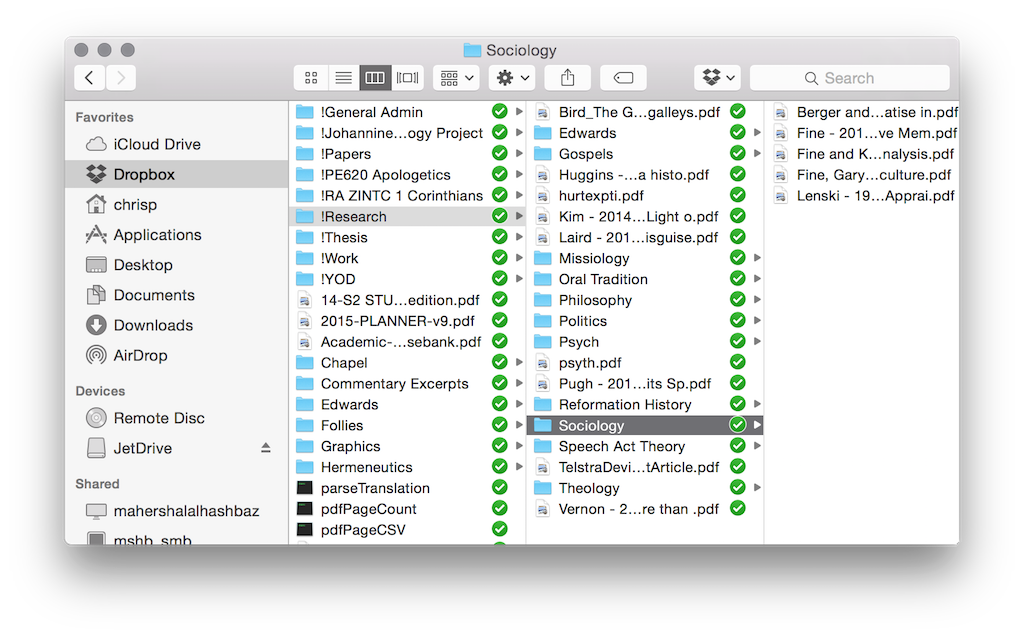
    Basically Dropbox works by synchronising everything you place in its folder into the cloud, and then replicating that sync to each machine. Its pretty simple really. While there are a ton of services that offer this feature, I started with Dropbox and given that it hasn’t eaten all my documents yet, I’m happy to stay with it. There are a ton of other features of Dropbox, such as shared folders (Gill and I use this regularly), and a bunch more. But the basic functionality that I use is simply to share files around the place. Now one of the reasons that I have stuck with Dropbox is that as an early service provider it is generally also supported by other applications, like GoodReader on my iPad which I will look briefly at next week. Having other app support is quite critical in some ways, so I would encourage you to find an app that works with everything that you want to work with. The key to working with Dropbox is to have a good folder organisation system. You can see mine in the screenshot, and it works for me. I recommend that you sit down for a bit and try and figure out a logical structure early on. They can be changed later, but the earlier you start with a structure the more natural it feels. As a little side note, if you want to have a folder appear at the top of a listing every time then just put an ! at the start of the folder name, as you can see from my screenshot.

    The other bonus with Dropbox is that it provides a good backup service. When your laptop goes missing, or Word eats a document, then you don’t have to worry as much about losing everything. Quick story time:

    Years ago when I was working in IT Support at the John Curtin School of Medical Research, I had a PhD student come to me in a panic. He was lugging his PC along with him, and to cut a longer story short the machine had been fried in an unfortunate lightning strike. Now he had all of his digitised data on that machine, and I do mean ALL of his data. From chapters of his thesis through to the raw data that made up his workings. Furthermore, he was somewhat paranoid about someone stealing his research and so while he kept notebooks for lab sessions, he destroyed the data after he had digitised it. Oh and he had no backups. That’s right, NO backups. Thankfully we could restore a bit of his data, but he still lost around 8 months worth of work. Moral of that story: back up your data!

    Dropbox is handy here, while I don’t advocate it as a complete backup service (and it shouldn’t be treated as such), it does provide a medium layer of backup, and a bit of piece of mind.

    Still make sure you BACKUP EVERYTHING. Email it to yourself, have multiple copies across multiple machines. Print it out if needed. But make sure you backup.

    If you haven’t heard of Dropbox, or you haven’t signed up, then I’m going to do something unusual for this blog. I’m going to give a referral link. Basically if you use this link then both you and I get a bit of extra space. Its not a lot, but it is better than a slap in the face with a wet fish. So if by some oddity you haven’t signed up for Dropbox, then go here: https://db.tt/MffoWBy

    DEVONthink

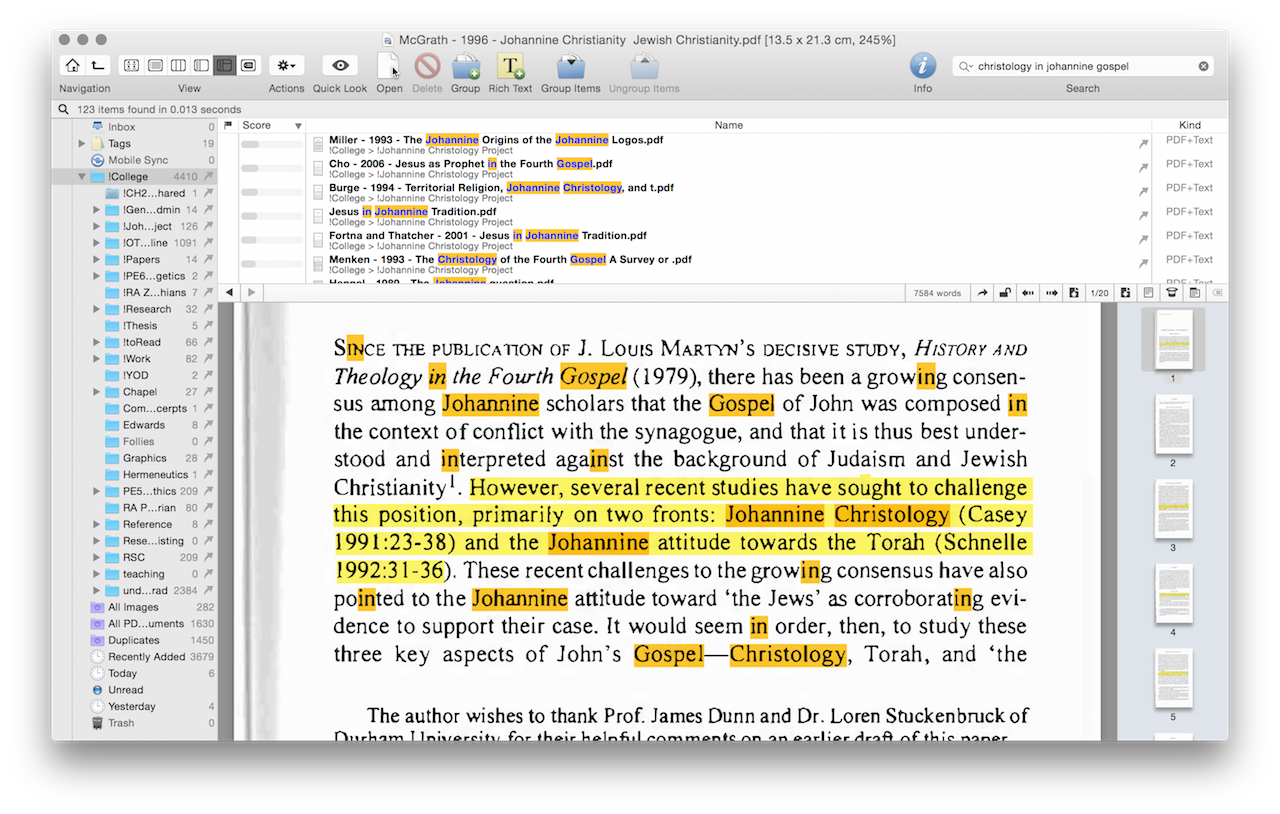
    Onto the next little app: DEVONthink. If Zotero is your reference and research database, then DEVONthink is your ‘Google.’ This app is probably a bit of an optional extra for most readers, as a lot of its usage depends on how you remember things. Personally I have a really good priming memory, and so tend to remember random quotes or bits of articles. DEVONthink essentially works as a large and relatively smart search engine for my local machine. I get it to index my entire research library, and then you can execute searches within that database.

    DEVONthink Search
    DEVONthink Search

    Now if you have all your scanned files OCRed into searchable text, then you can find pretty much anything within your library relatively quickly. In addition it has a decent inference language search engine, so that it can tell you which documents are related to your search terms, even if it doesn’t use that exact phrase.[ref]Pretty sure it uses a modified LSA algorithm here[/ref] This is only scratching the surface of DEVONthink, as it supports tagging, metadata and much more. However, given it is only an optional extra, I wont go into it in a huge amount of detail. My main usage for DEVONthink is to leverage my own memory type, and so while it makes sense for me it may not for you. If you don’t need such fine grained searching then its quite likely that the built in Spotlight search in OSX will work for you.

    Thats it for this shorter post this week. Although I am interested in how other people find data in their storage database. Comment below.