Now where did I read that quote? What did that book say again? Was the argument in this chapter coherent?
For anyone working in a research field I’m willing to bet that you have asked yourselves such questions, and it only gets worse the more you read. So after the post on Reading last Friday comes this timely post on how to organise what you have read. As with most items in our toolkit there are several different options for working at this stage of the process, however I’m only going to consider one today: Zotero. This is mainly because Zotero works at engaging with multiple different tasks in the research process. At one level it is a full fledged reference and citation manager, while at another it is a synopsis and summary database, and at yet another it is a library and database organisation tool. I feel that Zotero combines the best aspects of several other tools, and does it without a lot of the bugs or cost of some of the bigger names (cough Endnote comes to mind). Personally I use Zotero as a bit of a hub within my research process, articles and information get funnelled in and then spokes radiate out towards different tasks and then information is returned for further collation and use. This post is how I use Zotero.
The Basics
Simply speaking the basics of Zotero work as follows:
- Import or add reference into Zotero from the various plugins and data sources (Amazon, Ebsco, PubMed, Libraries etc) or input by hand.
- Cite reference in your text
- Sit back and marvel at not having to manually format references.
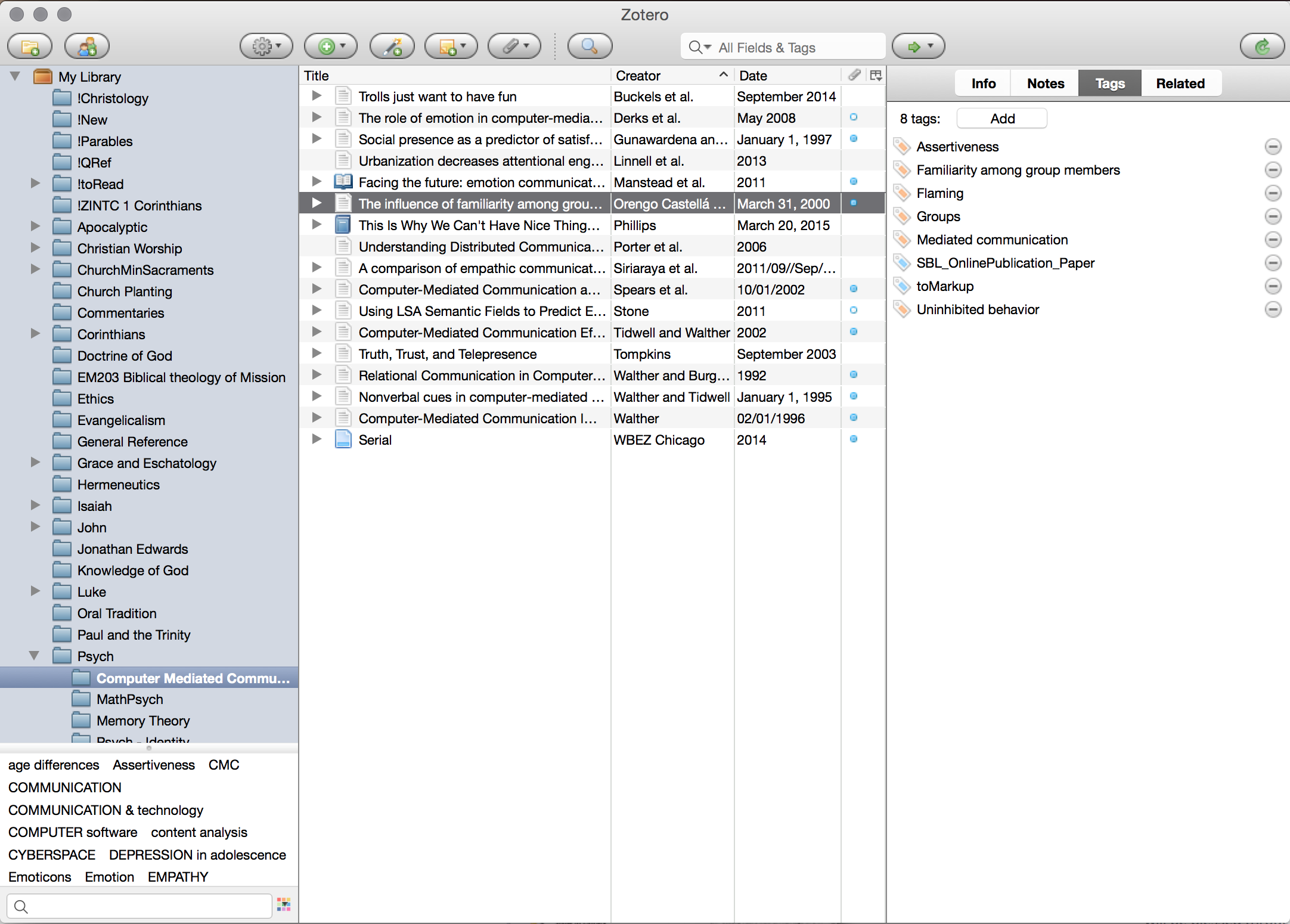
At the first level, that of making your work of referencing easier, Zotero does an admirable job. It is quick, easy to get data into, doesn’t crash regularly (Endnote should take notes), syncs over the web, and outputs in a wide variety of formats with little fuss. Even if this is all you use it for, it is a great time saver and helps with taming your citations from brusque unruliness to a general surly attitude. However, Zotero is capable of so much more than this, and to leave the process here would be to hamstring the use of the tool. But first a brief caveat.
Caveat: Zotero is exactly like every single other computer application, in that it is a bunch of mechanically executed code. [ref] ok some genetic algorithms excluded[/ref] It cannot think for itself, and while it has a whole bunch of smarts built in, it can only deal with the data that you feed it. So in true computer terminology it is susceptible to the failings of Garbage In, Garbage Out. Simply put if you feed Zotero, or any other program, garbage data, then expect garbage in return; it can only work with what you feed it. So if your citations have the wrong publisher, or incorrectly entered titles (yes capitalisation here counts), then you will get that out in return. This is the most common mistake I see with Zotero usage. I cant emphasise it enough, police and parse your data on the way in so you get well formatted, rather than unruly, data on the output. It is also worth noting that most library systems, including Library of Congress, and publisher data won’t conform exactly to your requirements. So things like the publisher ‘WB Eerdmans Inc.’ will need to be manually stripped back to ‘Eerdmans.’ This is extra effort, and is actually why I recommend that students only writing shorter essays (commonly ~2000 words) simply write and format their citations manually.
Research & Organisation
 That caveat aside, and arguably because of that caveat, we will continue on to the bigger and greater things that Zotero is capable of. If you are anything like me, you will probably dislike having a desk full of pieces of paper and various journal articles that have been read, or still yet to be read, or have been read but not summarised etc. For about 10 years of my prior research life this was my overwhelming bugbear. I would regularly lug a ream of paper around with various journals articles printed out, and swathes of postit tabs throughout them. These days I deal primarily in PDF, and digital highlighting and annotation make this process much easier. But how do you organise this information? All those a3532582920.pdf and pubmed_83928932.pdf, not to mention the assorted .epub files of Open Access books, and much more. Well this is the second phase of how to use Zotero, and where it comes into its own.
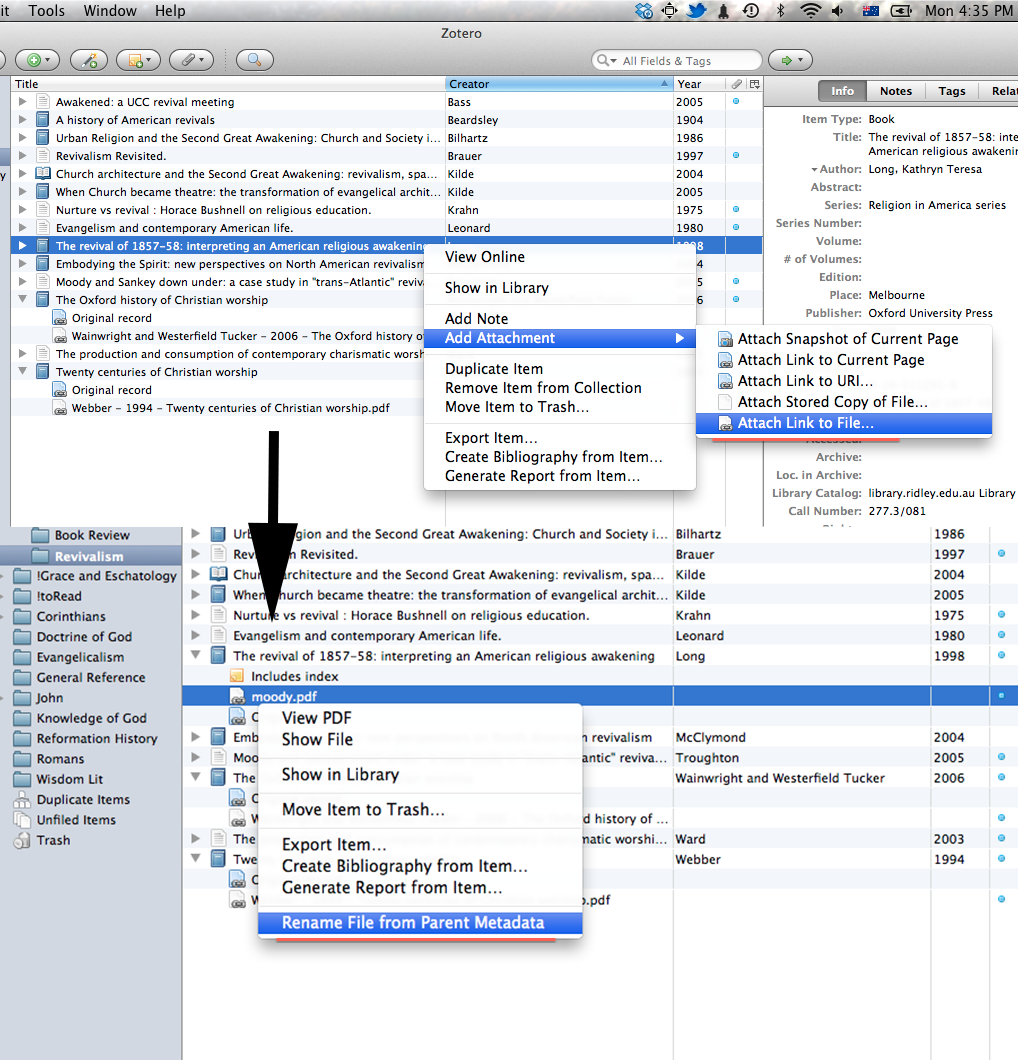 The first feature is somewhat mundane: renaming. Once you have a reference in Zotero you can attach or link a PDF to the reference and simply rename the file from the metadata in Zotero. It’s a simple feature, but saves a bunch of time and effort.
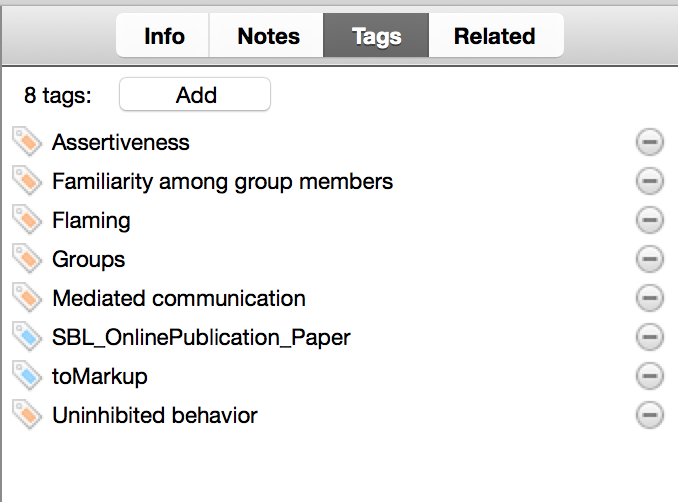 Secondly, and more critically, as a digital reference manager you can add all your references to Zotero, and then sort and organise them by two different methods. Firstly, you can sort them into categories. I predominantly use collections for thematic organisation, as you can see in my screenshot: ‘Christology’, ‘Luke.’ Furthermore these collections can be nested, as in my ‘Psych’ collection with various sub-collections underneath. The second way to organise your library is through the use of tags. I tend to use tags in three different fashions: topical, procedural, and project oriented. Topical tags simply delineate the various topics that are addressed by an article or book. Procedural tags generally mark whether something is yet to be read (toRead), or yet to be marked up (toMarkup). Project tags simply note that I used a certain article in a project I have worked on. The entire Zotero database is searchable by these tags so you can easily and quickly have an idea of what is yet to be read or marked up, or what you cited for a certain paper, or what deals with certain topics. Super simple stuff, but invaluable in being able to find material quickly when your library grows large.
Documentation & Gathering
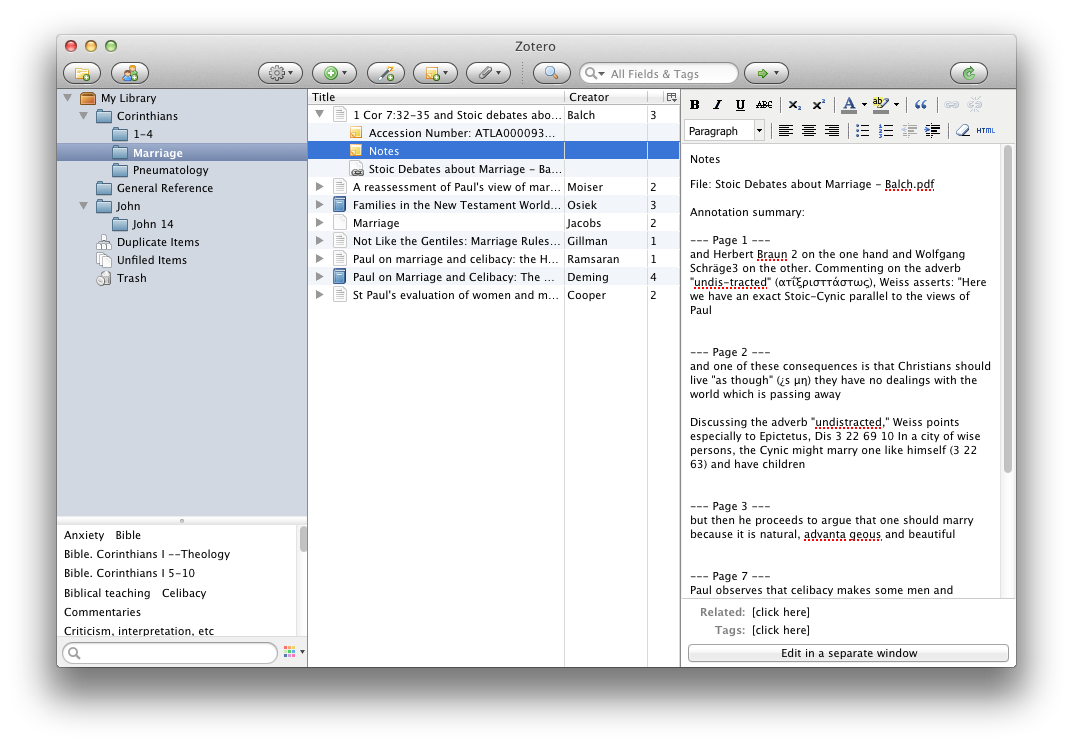 The penultimate phase of the Zotero experience comes in being able to collate and find your documentation and notes on all the books and articles. Within Zotero you can add ‘Notes’ for each reference. I use these notes in two ways. Firstly if I’m working with a digital resource tend to have a single note dedicated to all the highlights from that resource. You can extract these simply, and I’ll cover that in coming weeks. If it is a physical resource then I tend to transcribe either the full quote of interest, or briefly summarise the idea at hand, and note page number. That way the key pieces of information are easily at hand. This is the markup phase of my ’toMarkup’ tags above. Secondly, I also write a brief 50-100 word synopsis of each chapter or major logical section of the reference, in my own words. This allows for better memory retention of the material, but also provides a good reference synopsis of the work and therefore makes it easier to engage with at a later date. These Notes are stored alongside the reference and are synced across devices, and so are easily accessible anywhere. Furthermore, they are eminently searchable and while my office used to look like it was overflowing with a small dead forest, and previously I would be scrambling around in various manila folders and a whirlwind of post-it notes to try and find the source of a quote, I can now search for it in Zotero, and in pretty short order I have found the document I am after. This is one of the features of Zotero that I find invaluable these days.
Output
The final phase of my Zotero workflow is to actually output the references as citations in my documents. While Zotero does come with Word, LibreOffice and OpenOffice plugins, I find all of those word processors annoying and ultimately unsatisfying. I prefer to use Scrivener, which I will talk about in due course. But unfortunately Zotero doesn’t come with a default Scrivener plugin, although I’m hoping for one eventually. Rather you can use the RTF Scan feature of Zotero, which makes it useable with anything that can output in RTF format. In order to reference material you simply use the short code, consisting of {Author, Date, Page} or any one of the other short codes depending on your usage. You then run your output through Zotero and choose your stylesheet and bam, all your citations are done. It doesn’t get much simpler than that.
The final note goes to the stylesheet functionality. There are many referencing formats out there, and Zotero is invaluable when you need to reformat an article or paper for a different referencing system. All you have to do is download the new stylesheet and apply it to the document. There is a whole database of Zotero stylesheet (CSL) files out there for various formatting systems, and the majority you can find here: https://www.zotero.org/styles
If you are an SBL 2.0 user, you will find that the style on the repository is one that uses Ibid. notation. Given that the no-Ibid option seems to keep disappearing, here it is for posterity. society-of-biblical-literature-2nd-edition-full-notes-no-ibid
That just about wraps up this post on Zotero, as I said I find it the central hub of my research methodology. Although I’m sure that there are other tools out there. Perhaps Endnote has become the phoenix from the ashes and resurrected itself without crashing every 15 minutes, or perhaps you prefer a different tool. As usual I would love to hear your comments and what you use in the section below.


Leave a Reply