One of the tech questions I often get asked is how to setup citations in Scrivener using Zotero as a research manager. I have been meaning to write this post for quite a while, and was prompted on the topic again today.
There are multiple ways that this can work, and in another post I may go into my extended setup utilising LaTeX and Biblatex-SBL. But for now here is a quick way that i use for shorter papers and collaborative work that requires Word.
The core of this method is using the RTF Scan feature in Zotero, along with a short code that you input into Scrivener. The short codes come in various forms, but the simplest is just Author, Date and page reference as follows: {AuthorSurname, Year, pageref} with the braces surrounding the comma delimited code. This is simply inserted into a footnote within Scrivener like so:

Of course this can cause issues if there are multiple references published by the same author in the same year. However, this can be mitigated in a few ways. The simplest is to use {AuthorSurname, “Title,” Year, pageref}. But occasionally this doesn’t work due to punctuation in the title. In these circumstances I like to add a short title to the Author field like so:

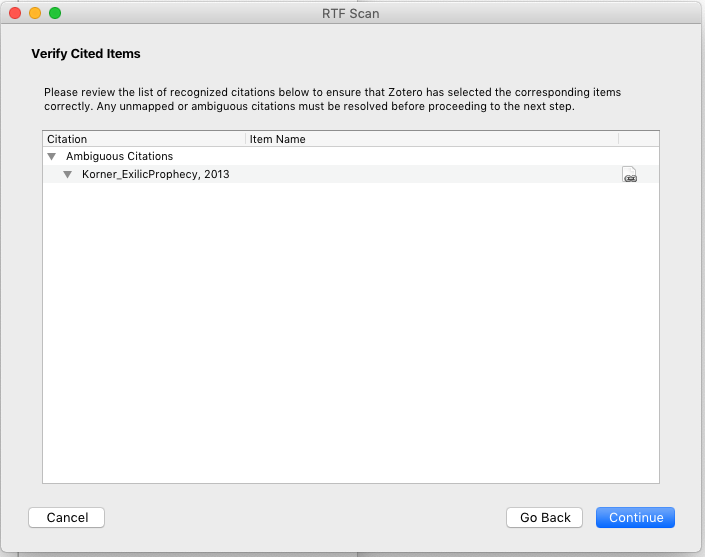
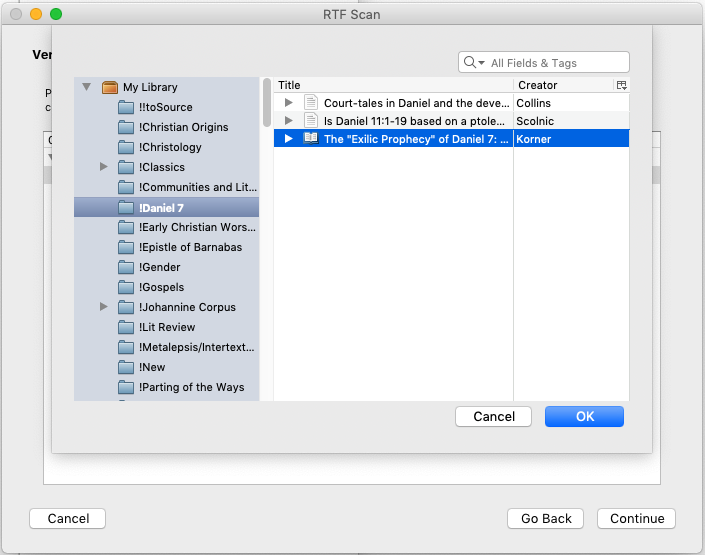
This will then break the scan feature, but it will prompt you to select the correct paper. The short title then allows you to easily find that paper in your database.
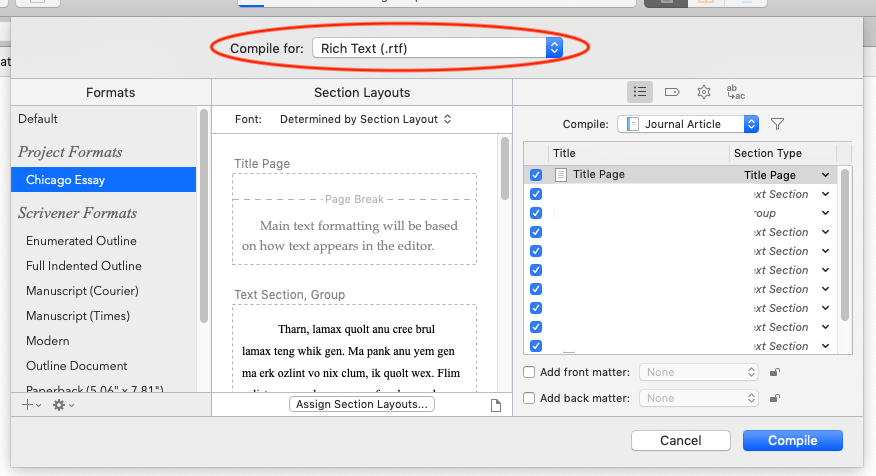
You can then export your document to RTF like so:
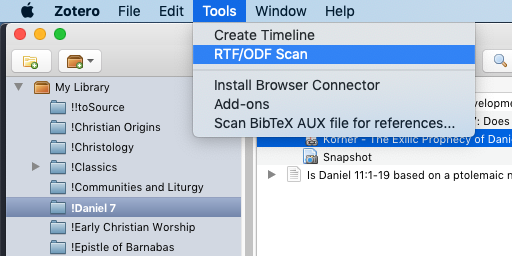
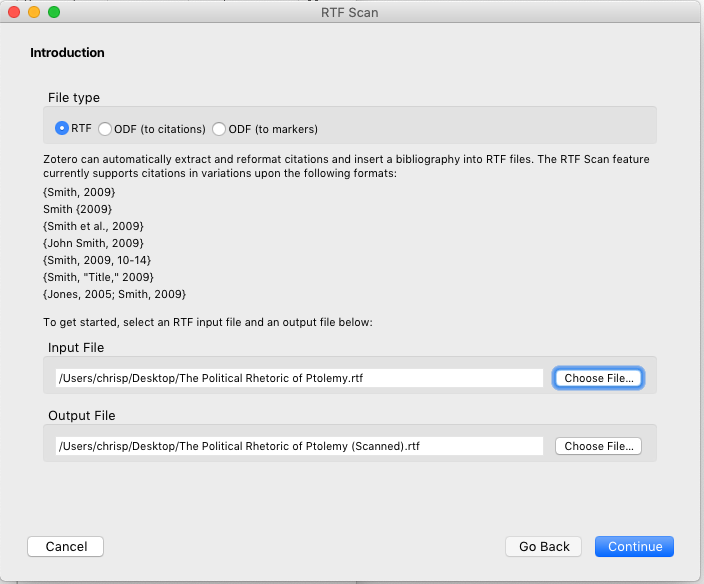
This can then be scanned using the RTF Scan feature:
If you have any scan codes that it cannot find it will prompt you to select them:

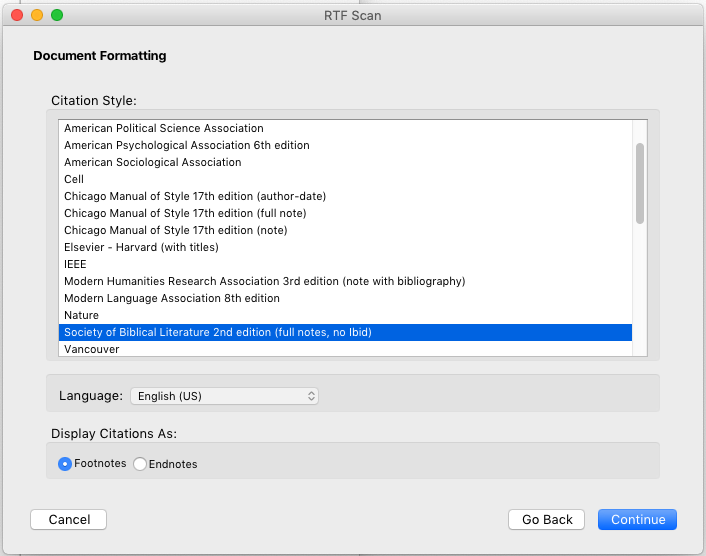
Select your output format:
Then an RTF document is generated that can be imported into Word for further manipulation, with the citation appearing like so:

Overall it is a relatively simple process, and one that allows for rapid export of papers for various purposes.
If you want to see how I use Zotero as a research manager, then I have posted on that here and on advanced Zotero here and then on Zotero++ here.
Leave a Reply